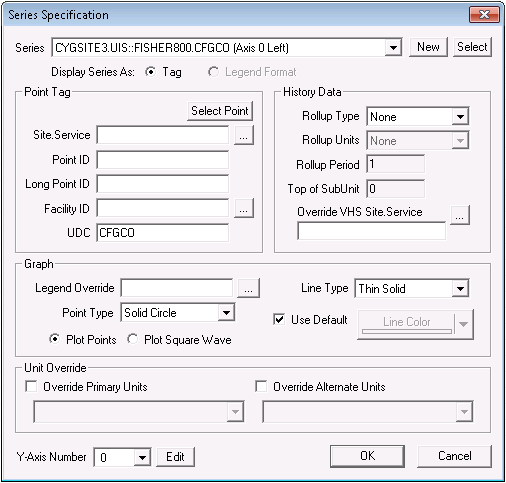
Although some properties of a series are inherited from a series's y-axis or from elsewhere in the Trend Tool, you can define properties specific to a certain series, in some cases overriding the inherited properties.
For more information, see the following subsections below:
Note: The following procedure assumes that you are using CygNet Studio in Edit mode, have successfully added a Trend Tool to TheView, and are looking at either the Default Trend Properties dialog box or the CygNet Trend Control Properties dialog box.

The following table lists and describes the Series Specification dialog box properties.
| Option | Description |
|---|---|
| Series |
Use the Series drop-down menu to select any available series for a group. When you select a series using this drop-down menu, all properties displayed on the Series Specification dialog box apply to the selected series. |
| New |
Use New to add a new, blank series to a y-axis. Complete new series configurations to suit your needs. The new series is not added to your y-axis until you click OK. |
| Select |
Use Select to open the Select Point dialog box and associate a new series with a UDC. You can use this feature to add multiple UDC-associated series at once. Each time you use Select to add a new series, the series displays in the Series field. The new series are not added to your y-axis until you click OK at the Series Specification dialog box. |
| Display Series As | If available, you can select one of two formats in which to display a series: Tag or Legend Format. |
| Y-Axis Number |
This drop-down menu displays the ordinals for all y-axes in a given trend. Use it to reassign the selected series to a new y-axis by selecting the new y-axis and clicking OK. You can achieve the same effect by dragging and dropping the selected series within the trend tree. Click Edit to open the Axis n Properties dialog box for the selected y-axis. For more information, see Editing a Y-Axis. |
|
Point Tag |
|
| Select Point |
The Point Tag area of the Series Specification dialog box enables you to edit point tag settings for the series selected in the Series field. You can change some or all of the series's settings on an ad hoc basis. Click Select Point to open the Select Point dialog box, then select a new point to override the existing one. The UDC displayed in the trend tree changes to match the newly selected point. However, other properties settings persist, even when the UDC changes. Important: On a templated screen, only the UDC field should be populated. |
| Site.Service |
Select a new Site.Service to override that displayed in the Series field. See also SiteService. Important: On a templated screen, only the UDC field should be populated. |
| Point ID |
Type a point ID to override that displayed in the Series field. See also PointId. Important: On a templated screen, only the UDC field should be populated. |
| Long Point ID |
Type a long point ID to override that displayed in the Series field. See also PointIdLong. Important: On a templated screen, only the UDC field should be populated. |
| Facility ID |
Select a facility ID to override that displayed in the Series field. See also FacilityId. Important: On a templated screen, only the UDC field should be populated. |
| UDC |
Type a UDC to override that displayed in the Series field. See also Udc. Important: On a templated screen, only the UDC field should be populated. |
| History Data | |
| Rollup Type |
By default, trends derive their values from raw data stored in the Value History Service (VHS). The Rollup Type drop-down menu enables you to trend rollup data for the selected point. Using the Rollup Type option might be preferable to using the Data Thinning option because rollup calculations performed by the VHS can provide improved performance and reduced network traffic relative to Data Thinning. Rollup Type options are as follows:
For Rollup Type definitions and information about how history values are used in rollups, see History Rollups. See also RollupType. |
| Rollup Units |
Rollup Units options define the time units by which a specified Rollup Type takes place. Rollup Units options are as follows:
For instance, if you select Minutes, rollups occur on a minute basis. The interval is further defined by the Rollup Period setting, which defines how many (in this case) minutes long a rollup period is. See also RollupUnits. |
| Rollup Period |
Rollup Period works in conjunction with Rollup Units to define the interval by which a specified Rollup Type takes place. Enter only whole numbers. For instance, if you selected Minutes from the Rollup Units drop-down menu then typed 3 in the Rollup Period field, rollups for the series would occur every three minutes. See also RollupPeriod. |
| Top of SubUnit |
The Top of SubUnit field enables you to further specify the time offset by which a rollup takes place. Subunit means whatever unit of time is the next smaller than that defined in the Rollup Units field. See also TopOfSubUnit. |
| Override VHS Site.Service |
The data used to build a trend is retrieved from a VHS. For each series, you can specify or override the source VHS from which data is retrieved by using the Override VHS Site.Service option. This is useful if you want to trend a series based on data stored in a replicated VHS. See also VhsOverride. |
| Graph | |
| Legend Override |
The Legend Override property specifies a legend format that overrides the one set on the Legend dialog box on a per-series basis. You can specify a tokenized legend format or user-defined text. For more information about tokens, see Using Text Tokens. See also LegendOverride. |
| Line Type |
The Line Type property specifies the line appearance and/or size for the selected series. However, the Plot Style (line, bar, points, and so forth) is a property of the y-axis. The following line types scale relative to a trend tool if the tool's FixedLineWidth property is set to 0 - No:
See also LineType. |
| Point Type |
The Point Type property specifies the shape of a data point icon. When a y-axis is configured to use a Plot Style that includes points (Points, Points + Best Fit Curve, Points + Best Fit Line, Points + Line, Points + Spline), each data point is marked with a user-specified icon. This is useful when creating trends meant to be printed using a black-and-white printer because unique icons for each series lend clarity to the printout. See also PointType. |
| Use Default / Line Color |
The Line Color property is used to manually select a color for a series. Click to disable the Use Default check box, then click the Line Color button to select the color. See also SeriesColor. Note: To change the color of the y-axis to match the series line color, you must manually configure the color of the trend line. The Use Default check box must be disabled, otherwise the color of the y-axis will not be changed. If the y-axis contains more than one series, the color of the label is that of the first series. Note: You can configure a line to reflect its associated point's state color, including alarm state. To do so, the series must be the only series in a trend. Enable the Color Series by Alarm option on the Colors page. Works with most Plot Styles. |
| Plot Points |
Select this option to mark each plotted point in a line or curve format. If a series represents an analog point, you might want to configure the series to plot the data using lines or curves rather than a square wave (Plot Square Wave). Important: In order for points to display on a graph, Mark Data Points must be selected. In Edit mode, this option is available on the Graph page of the Default Trend Properties or CygNet Trend Control Properties dialog box. In Run mode, this option is available by right-clicking the trend and selecting Mark Data Points. |
| Plot Square Wave |
Select this option to make plotted points visible in a square wave. If a series represents a digital point, you might want to configure the series to plot the data using a square wave rather than angled lines or curves (Plot Points). Important: In order for points to display on a graph, Mark Data Points must be selected. In Edit mode, this option is available on the Graph page of the Default Trend Properties or CygNet Trend Control Properties dialog box. In Run mode, this option is available by right-clicking the trend and selecting Mark Data Points. See also PlotSquareWave. |
| Unit Override | |
| Override Primary Units |
Use this option to set an override value for the primary units of a series. If the option is enabled, the units set as the override unit type are displayed for the series on the trend. These settings do not affect the actual unit settings in the Point Service (PNT) record; they only override the units for the series as displayed on the trend. See also PrimaryUnitsOverride and OverridePrimaryUnits. |
| Override Alternate Units |
Use this option to set an override value for the alternate units for a series. If the option is enabled, the units set as the override unit type are displayed for the series on the trend. These settings do not affect the actual unit settings in the Point Service (PNT) record; they only override the units for the series as displayed on the trend. See also AlternateUnitsOverride and OverrideAlternateUnits. |
|
|
|

